
Petpooja POSS
Billing, KOT, inventory and Swiggy/Zomato sync.
698 articles · page 7 of 47More guides
GST Billing for Restaurants: Why You Cannot Choose 18%
Almost every restaurant in India charges 5% GST with no input tax credit. That is the short answer, and the part owners find hardest to accept is that it is not a choice. You cannot opt into 18% to claim credit on your rent and your raw material. The 18% rate exists, but only for
AJ Avani Joshi17 Jul 2026
E-Invoice for Restaurants: Why Most Bills Do Not Need One
If your restaurant’s turnover has crossed ₹5 crore, you may be worried that every bill now needs an e-invoice. For most restaurants, it does not. E-invoicing under GST covers B2B sales, supplies to SEZ units, exports, and deemed exports. It does not cover B2C sales. Almost every bill a restaurant raises is B2C. A diner
Restaurant Day-End Report: How to Close and Reconcile
A restaurant day-end report is the nightly check that matches what you sold against what you actually collected. It lines up your cash drawer, card, UPI, and online payments against the sales your POS recorded. Any money that has gone missing shows up the same night, not weeks later. Here is the short version. Close
Tally Integration for Restaurants: How POS Syncs to Tally
Tally integration connects your restaurant POS to Tally. Your daily sales, GST, and expense figures move into your books without anyone re-typing them. The numbers your biller records at the counter become the numbers your accountant sees in Tally. On Petpooja, this sync runs on the Android POS and Electron POS types. It takes the
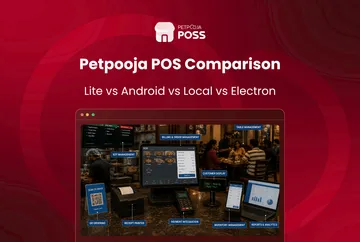
Petpooja POS Types: Lite vs Android vs Local vs Electron
Petpooja POSS is not one single product. It comes in four types, and the type you pick decides your hardware, your features, and which apps and integrations you can add later. So the real first question is not “should I use Petpooja,” it is “which Petpooja POS type fits my outlet.” Here is the short
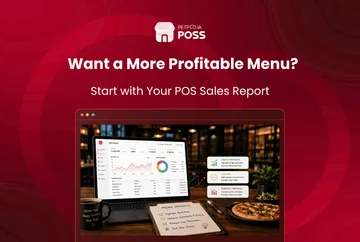
Use Your POS Sales Report to Improve Your Restaurant Menu
Across the 1,00,000+ restaurants on our POS, the owners who lift their margins share one habit. They read the sales report each month and act on it. Your POS already tracks two things for every dish: how many you sold, and how much profit each one earned. Put those numbers side by side, and your
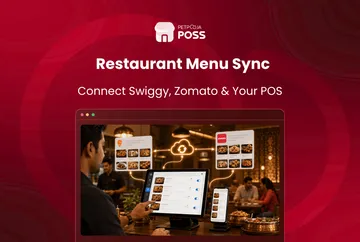
How to Sync Your Menu Across Swiggy, Zomato & Your POS
Menu sync means you edit your menu once in your POS. The change then updates on Swiggy, Zomato and your own ordering channels together. You stop logging into each app to fix the same price or switch off the same sold-out dish. The POS connects to Swiggy and Zomato through an integration. When you change
Item Availability & Menu On/Off: Stop Cancelled Orders
Item availability is the on/off status of every dish, set inside your POS. A dish is either in stock and orderable, or sold out and paused. Keeping it accurate is what stops a customer from ordering a dish your kitchen cannot make. You cannot hold this straight by hand across a counter, Swiggy and Zomato
Avani Joshi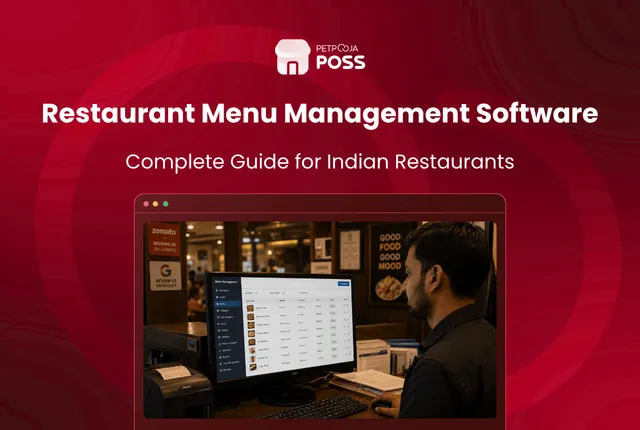
Restaurant Menu Management Software: A Complete Guide
Restaurant menu management software lets you build, price and update your whole menu from one place, then push those changes to your billing counter, your online ordering apps and your kitchen at once. You edit the menu a single time, and every screen your customers and staff see stays in step. Think of it as
Avani Joshi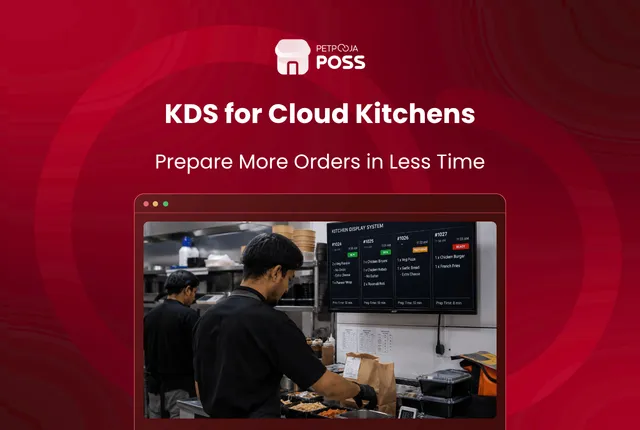
How a KDS Speeds Up Order Prep in Cloud Kitchens
A kitchen display system speeds up order prep in a cloud kitchen by putting every Swiggy and Zomato order on one screen the moment it lands, so cooks start right away instead of waiting for a slip to print. It tags each order to its brand and station, times how long each one takes, and
Avani Joshi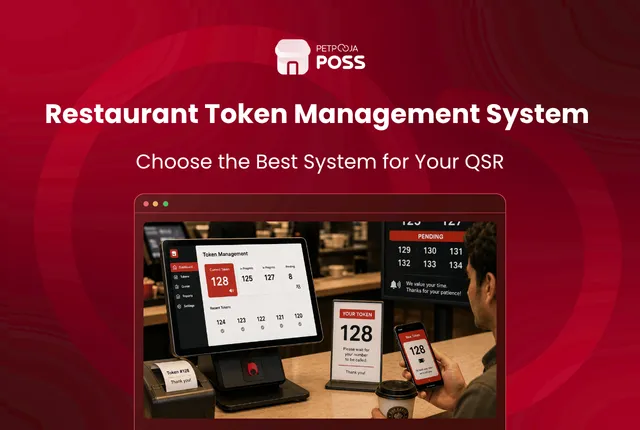
Token Management System: A Guide for QSR Counters
A token management system is a customer-facing screen at your pickup counter that shows each order by its token number, and whether it is still being prepared or ready to collect. Takeaway customers and delivery riders read the screen instead of asking your staff, so nobody crowds the counter waiting for their food. Think of
Avani Joshi
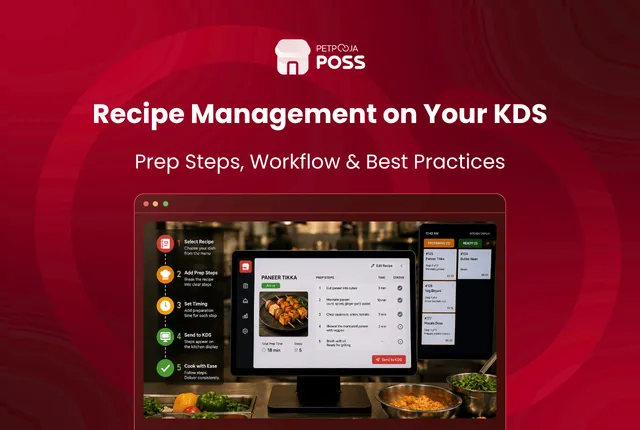
Recipe Management on Your KDS: How to Set Up Prep Steps
To set up recipe and preparation steps on your kitchen screen, you add the cooking steps to each dish once in Menu Management. From then on, they travel with that item to your kitchen display system. A cook taps the item on the order card, a side panel opens, and the method, portion, and plating
Avani Joshi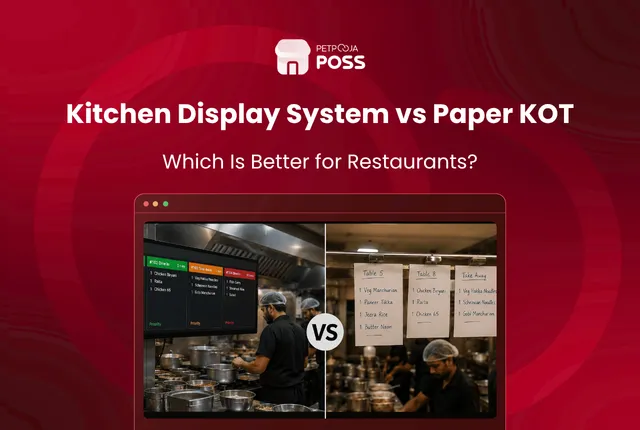
KDS vs Paper KOT: Why Busy Kitchens Are Going Screen-First
A KDS (kitchen display system) and a paper KOT (kitchen order ticket) do the same job: they tell the kitchen what to cook. The difference is that a paper KOT prints the order on a slip, while a KDS shows it live on a screen. Same order details, no printer and no paper. That one
Avani Joshi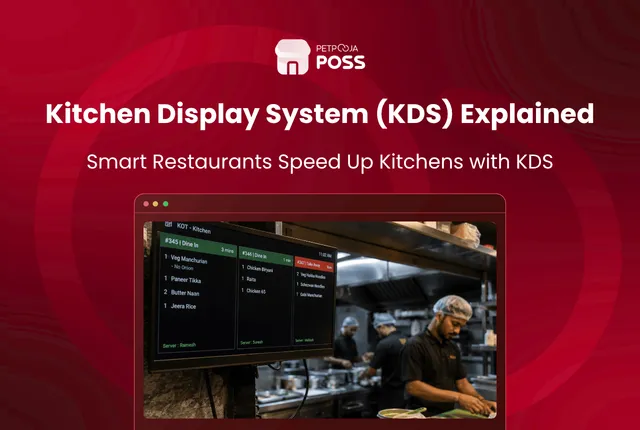
What Is a Kitchen Display System (KDS)? A Guide for Indian Restaurants
A kitchen display system (KDS) is a screen in your kitchen that shows orders in real time, in place of printed paper slips. Every order punched at the billing counter, or received from Swiggy and Zomato, appears on the screen for the cooks to read and act on. Think of it as the paper KOT,
Avani Joshi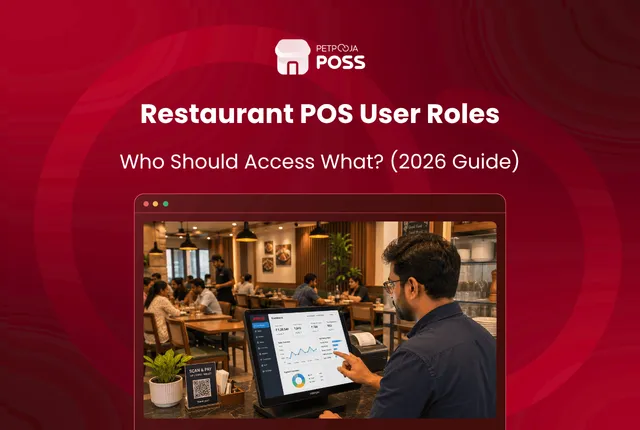
Restaurant POS User Rights: Who Should Access What
Restaurant POS user rights decide what each staff member can do in the system. The simple rule is to give every role only the access its job needs. A biller takes orders and settles bills, a manager handles the risky actions like cancelling a settled bill or approving a large discount, and the owner sees
Avani JoshiPractical guides for your business, in your inbox.
New articles, free tools and templates for restaurants, retail and growing businesses. No spam, unsubscribe anytime.