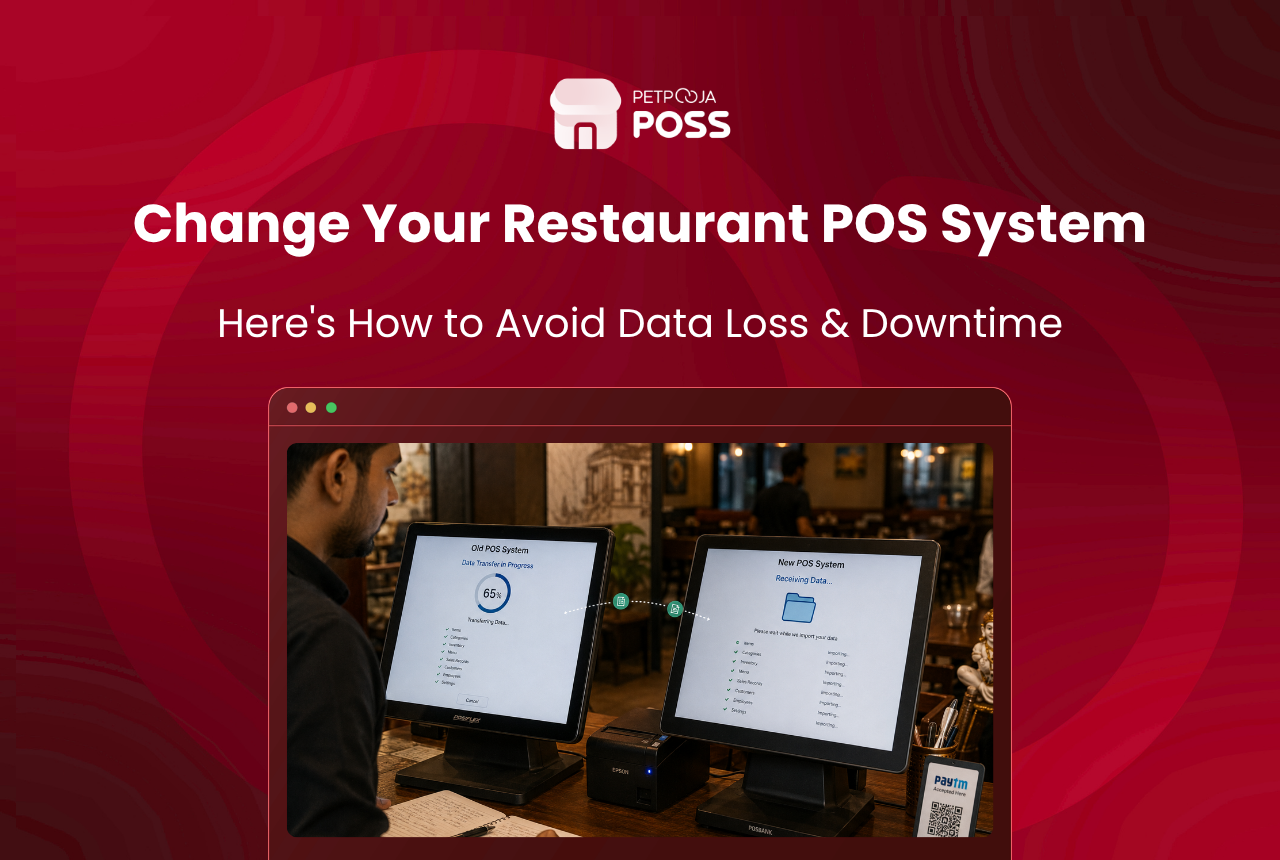
You will not lose your menu or your customer list when you switch a restaurant POS. What restaurants lose is sales history. That sits in the old vendor’s database in their own format, and stops being yours the day the account closes.
The rule is simple: take your exports with the old account still live, and cancel only once a day-end matches across both systems.
Across the restaurants Petpooja onboards from another POS, the ones who run into trouble are nearly always those who cancelled the old plan first. This guide covers what transfers, what to export, and the order to move in.
Key Takeaways
- Menu, items and customer records usually transfer; sales history usually does not
- Export before you cancel, never after the old account closes
- GST law makes you keep records for 6 years from the annual return due date
- Run both systems together until the day-end totals match
- Ask any vendor in writing what moves across and what gets rebuilt
What Data Do You Actually Lose When You Switch POS?
Most of your setup moves. The part that goes missing is history, and owners notice months later, when they need last year’s numbers for a filing or a loan.
| Your data | What normally happens | Who handles it |
|---|---|---|
| Menu, items, variations | Transfers or is rebuilt cleanly | New vendor |
| Customer database | Transfers | New vendor |
| Sales history | Rarely transfers | You must export it |
| Tax and GST reports | Rarely transfers | You must export it |
| Stock and recipes | Sometimes transfers | Confirm in writing |
| Tax and outlet settings | Rebuilt fresh, on purpose | New vendor |
Settings are rebuilt rather than copied for a good reason. Carrying an old tax misconfiguration into a new system just moves the problem across.
Where your data sits decides how much of this you control. Cloud plans back up on their own, while a local setup keeps everything on your own machine, as our guide on POS Local vs cloud POS explains.
What to Export Before You Cancel Your Old POS
Do this with the old subscription still active. Most vendors close the dashboard the day it lapses, and every report you never pulled goes too.
- Sales reports, day-wise and item-wise, for every month you are still required to keep.
- Tax and GST summaries, month by month, matching what you already filed.
- Customer database, with phone numbers and any loyalty balances.
- Menu file, with prices, variations, add-ons and tax mapping per item.
- Stock and recipe data, if you were running inventory.
- Staff and user list, with the access rights each person held.
That list is not arbitrary. Section 35 of the CGST Act requires a true account of stock, output tax and input tax, and your POS holds most of that record.
Save every export as CSV or Excel, not just PDF, which is useless for reconciling. Our daily sales report template and stock template give you a format to drop those exports into.
Keep two copies in different places. A backup that lives only on the billing machine is not a backup.
How Long You Must Keep Old Restaurant Records
This is the part owners skip, and it is the one with a legal deadline attached. Under Section 36 of the CGST Act, a registered person must keep books of account and records for 72 months, which is six years.
The six years run from the due date of the annual return for that year, not from the date of the bill. Under Rule 80, that return is due by 31 December following the financial year, which puts records for FY 2024-25 out to late 2031.
A second condition catches people out. Say you are party to an appeal, a revision or an investigation. You hold those records for one year past its settlement, or the six years, whichever ends later.
A dispute raised in 2029 over a 2024 filing pulls you back to bills raised on a POS you stopped paying for years earlier. The retention clock does not reset for a change of software, which is why the export step above is not optional housekeeping.
The Right Order to Switch a Restaurant POS
Sequence separates a quiet switch from a bad week. The new system goes in first, the old comes out last, and the two overlap in the middle.
Each step has one job, and skipping any of them causes the trouble.
- Export. Pull every report listed above while the old dashboard still opens.
- Set up. The vendor rebuilds your menu, tax rules and outlet structure, and trains staff before anyone bills a real order.
- Run both. Bill on the new system with the old till powered on beside it, and compare totals at close.
- Cancel. Only once a full day-end matches on both systems.
Pick a slow window for step 3, so your team makes its first mistakes in front of twelve covers rather than ninety.
How long you stay in parallel depends on your billing. A single counter with one tax rate is safe after a day. An outlet running dine-in, takeaway and three aggregators needs longer, since some order types appear only at peak hours.
Compare the day-end report from both systems each night. A matching total is your signal to stop.
What a Good Vendor Should Handle for You
Migration should be the vendor’s work, not yours. Ask what they do at the demo stage, and get the answer in writing.
With Petpooja POSS, setup takes under a day for a single outlet. The Petpooja team migrates CRM data from your previous POS. Aggregator setups are reinstalled too, rather than left for you to reconnect. Training is included, on call and in person, with retraining available later if you hire new staff.
Support runs 24×7, and every outlet gets a named point of contact rather than a ticket queue. That matters most in week one, with small questions coming up mid-service.
Two questions separate a serious vendor from a sales pitch. Ask which parts of your old data they will migrate themselves, and ask what happens to your records if you ever leave them. A vendor comfortable answering the second question is usually the safer one.
Get the same answers from every vendor you shortlist, to compare like with like. A vendor evaluation template keeps those replies side by side instead of scattered across email threads.
What to Check in Your First Week
Going live is not the finish line. The errors that hurt are the quiet ones, the kind that surface only at month close.
Check these in the first few shifts:
- Tax on a test bill of every type you run: dine-in, takeaway and delivery each carry their own rate and mapping.
- Aggregator orders landing in the POS rather than only on the partner tablet.
- KOT routing, so the kitchen and the bar each get the right slips at the right printer.
- User rights and the audit trail, because staff rebuilt in a hurry often end up with more access than they had before.
- Your first GST filing on the new system, against the summary you exported from the old one.
That last check is the one worth diarising. A tax mapping set wrong in July only shows up when the return is prepared, and by then you have a month of bills to correct rather than one.
Mistakes That Cost Restaurants Their Data
Here is an illustrative example, not a real outlet. A two-outlet QSR in Gachibowli, Hyderabad cancels its old POS on a Monday to save one month’s fee. In November it finds it cannot pull FY 2024-25 sales for a loan file. The saving was around ₹4,200. The reconstruction took three weeks of manual work.
The failures repeat in the same few shapes:
- Cancelling before exporting. The dashboard closes and the history goes with it. This is the costly one.
- Exporting only PDFs. Readable, but you cannot reconcile or re-import from them.
- Trusting one copy. A file on the billing machine dies with the billing machine.
- Skipping the parallel run. Nobody notices a tax mapping error until the month closes wrong.
- Forgetting user rights. Staff get rebuilt with the wrong access, and your record of who did what starts weak from day one.
Owning your numbers is the wider point here, and why your sales data matters goes into it beyond the switch itself.
Conclusion
Switching a restaurant POS is a sequencing job, not a technical one. Export while the old account is live, let the new vendor rebuild your menu and settings, run both systems until the totals agree, and cancel only then.
Do it in that order and you keep six years of records, your customer list and your menu. The only thing you lose is the software you wanted to leave. To walk the move through against your own outlet, ask the team for a demo of Petpooja POSS.
Frequently Asked Questions
Not if you export before you cancel. Menu, items and customer records usually transfer. Sales history often does not, because it sits in the old vendor’s database in their format. Take your own export while the old account is still active.
Six years. Section 36 of the CGST Act sets it at 72 months. The clock starts on the due date of the annual return for that year, normally 31 December after the financial year. An open appeal or investigation extends it further.
Day-wise and item-wise sales, tax and GST summaries, the customer database, the menu with prices and tax mapping, stock and recipe data, and your staff list with access rights. Save as CSV or Excel so the figures stay usable, and keep a second data backup off the billing machine.
Yes. Build the new system in the background, train staff before go-live, then run both side by side until the totals agree. Billing never stops, because the old system stays on until the new one produces a matching day-end. Our UAE switching guide covers the same approach for outlets there.
A good one handles most of it. Petpooja migrates CRM data from your previous POS and reinstalls aggregator setups during onboarding. Keep your own export regardless, and ask for a written list of what transfers and what is rebuilt. A backup and restore routine is worth setting up on the new system from week one.